Aero Project Brief and recommended actions
Updated
The Aero Project Brief is a short summary of where a project stands. Below it, Recommended Actions lists cards for specific tasks, comments and project members, each with a button that lets you act on it.
This feature is available when it's turned on for your organization. If you don't see it, contact your OnRamp team.
When to use it
Open the project overview when you start work on a project. Read the brief, then work through the recommended actions: send nudges, reply to customers, review reassignments, send invites and move due dates.
How it works
The brief
The Aero Project Brief card covers:
Overall completion
Overdue tasks, unassigned work and comments without a reply
Customer engagement signals, such as logins and portal visits
Each Aero run generates one brief, and the latest brief replaces the previous one. The card shows when the brief was last updated. If there's no brief yet, the card reads No Aero brief has been generated for this project yet. Launch Aero to generate one.
Recommended actions
The filters at the top of Recommended Actions are All, Nudge, Comment, Reassign, Invite and Dates. Each one shows a count. When there are no cards, you see No recommended actions right now. You're all caught up!
Reassignment cards are grouped into one card, with a title such as Reassign 3 overdue tasks. Date cards are grouped into another, such as Move 2 due dates. In a group, each row shows the task name, the suggested change and its own button.
Each card's button opens a dialog where you review the action before it happens. The button needs a matching permission, and it's disabled without it:
Card | Button | Permission needed |
|---|---|---|
Nudge | Send Nudge | Update the project |
Invite | Send Invite | Update the project |
Comment | Reply, or Reply to customer for a customer comment | Manage comments |
Reassign | Review, or Review Task when no one else can take the task | Update tasks |
Dates | Move date | Update tasks |
Cards that propose changes | Review | Make changes with Aero |
What each card suggests
Nudge: Aero recommends a nudge on a task that isn't marked internal, isn't complete, isn't deleted and is overdue by at least 2 days. A task whose nudges are paused, or whose due date is only estimated, never gets a nudge card.
Reassign: Aero recommends a reassignment for an overdue task that isn't marked internal and has an assignee, whether the assignee is on your team or the customer's. It does this when the assignee hasn't acted on the project for your organization's number of days, or never has. The default is 10 days, and workload isn't a factor. When you confirm, Aero assigns the task to the member you chose, notifies them and shows Task has been assigned to followed by their name.
To change the number of days, go to Settings > Aero, open the Recommendations tab, enter 1 to 90 in Days without activity before Aero suggests reassigning a task, and select Save. This tab appears only to people who can manage Aero's autonomy settings.
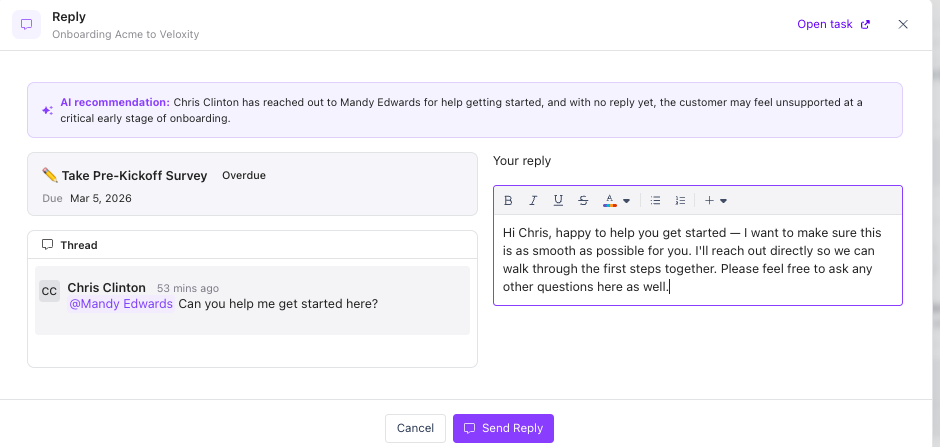
Comment: Aero recommends a reply when a customer user's comment is the latest comment on a task and was posted in the last 30 days. Customer comments are marked Customer. The reply dialog starts with a reply Aero drafted, and you can go to the task from it.
Invite: Aero recommends an invite for an active customer project member who hasn't been sent the project invitation email. Send Invite sends that invitation.
Dates: Aero suggests moving an overdue task to the date it forecasts the task will really finish, based on how long similar tasks took. Accepting pins the date as Aero's, so the task's date rule stops moving it until someone re-links it. It also recalculates the dates that depend on it and logs Date moved to Aero's forecast in the task's activity. Aero doesn't move the date if the task is already done or its date follows another task. It also doesn't if someone set the date by hand and that date hasn't passed, or if someone undid Aero's earlier move. It won't move a date into the past, more than 120 days out, or to a date no later than the current one. When that happens, a message appears and the card leaves the list until you reload the page. The card stays open, so it can come back after a reload. Aero's next run removes it if it no longer applies.
Dismiss or snooze a card
What the X on a card opens depends on your permission:
If you can update the project: the X opens Why dismiss this? with Not relevant, Already handled, Wrong person and Later · back in 7 days. Later · back in 7 days lets Aero raise the same card again after seven days. The other reasons dismiss the card for good. On a grouped card, the X is on the group header and dismisses every task in the group.
If you can't: the X opens only Snooze for today. It hides the card in this browser until midnight in your own time zone. On a grouped card with several tasks, it reads Snooze all N for today, for example Snooze all 3 for today, and hides every task in the group. A group with one task shows Snooze for today.
When Aero runs
Aero runs once a day overnight, every day of the week. It runs on eligible projects that have had a task change or a new task comment since their last run. A project is eligible when it's published, active and not archived, has an account, and has a planned start date in the past 180 days.
To run Aero yourself, select Launch Aero on the Aero Project Brief card. The button is disabled if you can't update the project. When the run succeeds, Aero finished appears and the brief reloads. When it doesn't, Aero failed or Aero produced no brief appears.
Each run removes cards that no longer apply and adds new ones. It never adds a second card for the same task, comment or recipient. The daily run also closes cards older than 30 days and cards on completed, archived or deleted projects.
A successful manual run takes the project out of the next daily run. New activity on the project queues it again. If the manual run fails, the project stays queued.
Limits
Snoozing a card hides it only in that browser, and only until midnight in your own time zone. Teammates still see it.
Aero doesn't recommend a reassignment based on workload, only on the assignee's inactivity.
Aero won't move a date that follows another task, or a date someone set by hand that hasn't passed yet.