Assign a project owner based on CRM record data
Updated
Who can do this: Super Admins, Creators, Collaborators and Integrators
A workflow's Project Owner card decides who owns each project the workflow creates. You can add conditions that check a field on the trigger record, such as a deal amount, and assign a different owner for each. For example, smaller deals can go to one onboarding specialist while larger deals go to whoever owns the deal in your CRM.
How the Project Owner card works
A new Project Owner card has one condition: Default or unmatched condition. It's set to From trigger object, so each project's owner comes from the trigger record. Every project gets the same owner only if you set this condition to Fixed and choose a person.
Each condition you add has:
Rules: a field to check, a comparison (for example, less than or greater than or equal to) and a value.
An owner option:
From trigger object takes the owner from the trigger record. Owner field is optional: choose a lookup field on the trigger record, such as the opportunity's owner ID. Then map Owner first name field, Owner last name field and Owner email field. If you leave Owner field blank, the name and email fields are read from the trigger record itself.
Fixed assigns the person you choose under Select owner.
Round robin assigns from a pool of people. It appears when it's turned on for your organization. If you don't see it, contact your OnRamp team.
The Default or unmatched condition has the same owner options. It's used when a record doesn't match any of your conditions.
Add a condition
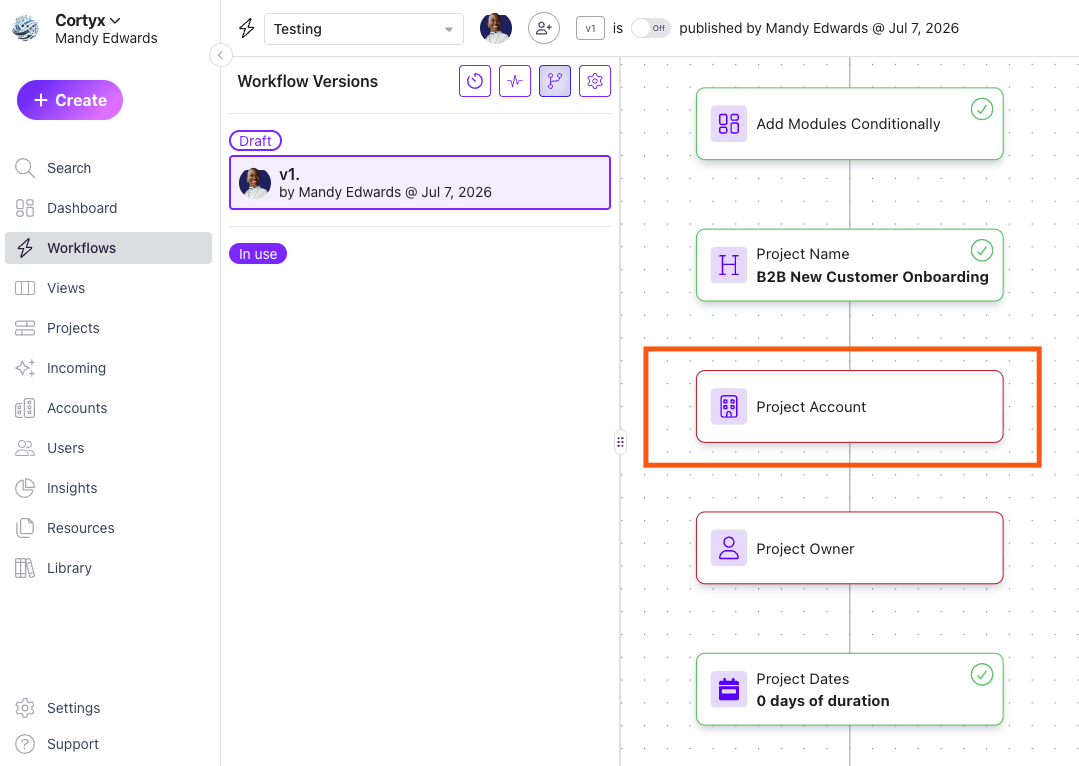
Open the workflow and select the Project Owner card in the flow.
Select Add Condition. The new condition appears above the Default or unmatched condition.
Set the rule's field, comparison and value.
Optional: Add more rules to the condition. When a condition has more than one rule, choose All to require every rule to match, or Any to require at least one.
Choose the owner option for the condition and fill in its fields.
Set the owner option for the Default or unmatched condition. Don't leave it blank: records that match no condition still need an owner.
To copy a condition, select its duplicate icon. To remove one, select its delete icon. The Default or unmatched condition can't be deleted.
How OnRamp picks the owner
OnRamp checks conditions from top to bottom. The first condition that matches and produces an owner wins. Order matters, so check that your ranges don't overlap or leave gaps.
A matching condition that can't produce an owner is skipped, and OnRamp tries the next one. This happens when the mapped owner field is blank on the record, or when it matches no OnRamp user. If no condition produces an owner, the run fails with No valid owner found in the configured branches. The error lists why each condition was skipped. To find and fix failed runs, see Workflow didn't create a project.
Note: When the owner comes from the record's first name, last name and email fields, and no OnRamp user has that email, OnRamp creates a new internal user with the Creator seat license.
Example
Assign smaller deals to one team member, and let larger deals go to the opportunity's owner in your CRM.
Condition | Rule | Owner |
|---|---|---|
Condition 1 | Amount < 50,000 | Fixed: a specific team member |
Default or unmatched condition | Everything else | From trigger object: Opportunity.Owner ID |
In this setup, every deal under 50,000 goes to the person chosen in Condition 1:
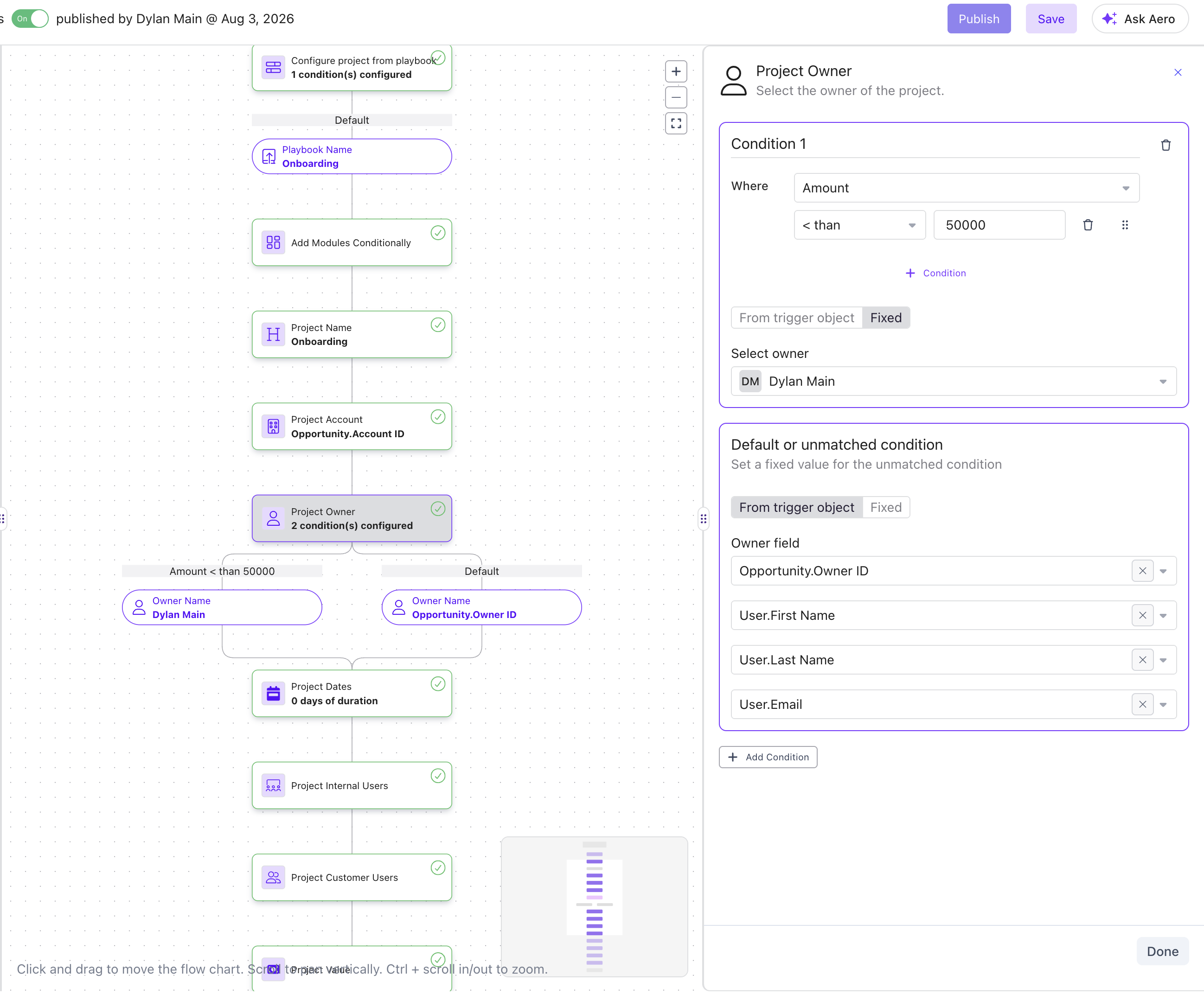
Everything else falls through to the default and picks up the opportunity owner from your CRM.
Keep your conditions current
The values in your conditions, such as deal size bands, live only in the workflow. When your tiers change, update the conditions by hand. If your CRM already decides the owner, mapping it with From trigger object means you update the rule in one place.